Key takeaways
- Side by side, both centered: Choose independently adjustable arms with enough horizontal reach to bring the inner edges together. This is best for spreadsheets, coding, and general multitasking.
- One primary screen and one side screen: Select an arm that can pull the primary display directly in front of your chair while leaving the second screen angled 20–30 degrees toward you.
- One landscape and one portrait: Make sure both VESA plates rotate 90 degrees and that the vertical screen can clear the desktop. A 27-inch monitor in portrait can be around 24 inches tall, so check for shelves and lamps.
- Stacked screens: Use a tall pole or explicitly rated vertical mount. Two large displays may place the upper screen too high for comfortable daily use; the top edge should generally remain near or modestly above eye level.
The best dual monitor arms are the ones whose weight range, VESA compatibility, clamp clearance, and movement style match your monitors and desk—not simply the arms with the most advertised adjustment.
A good setup should leave both screens stable when you type, free enough desk space for speakers or notebooks, and position the displays without forcing your neck to twist. Before choosing a model, record each monitor’s weight without its original stand, screen size, VESA pattern, and the thickness and underside clearance of your desk.
Our top picks


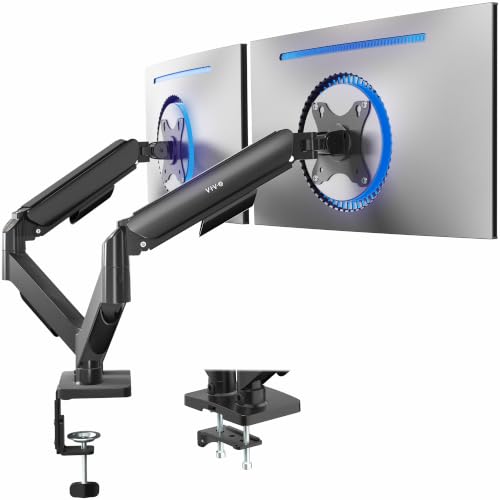

As an Amazon Associate we earn from qualifying purchases at no extra cost to you. Ratings are shown as listed on Amazon.
Quick picks by desk situation
| Situation | Best arm type | What to prioritize | Typical market range |
|---|---|---|---|
| Small apartment or shallow desk | Vertical-pole or short-depth dual arm | Low rear clearance, compact base, independent height adjustment | Usually $60–$180 |
| Two 24–27-inch office monitors | Gas-spring dual arm | About 2–20 lb per arm, VESA 75 x 75 or 100 x 100 | Usually $80–$250 |
| Two heavy 32-inch displays | Heavy-duty pole or reinforced gas-spring arm | At least 20–35 lb per arm, wide joints, strong clamp | Usually $180–$500 |
| Rented desk or frequent relocation | Clamp arm with protective pad, or weighted-base arm | Non-permanent mounting and easy disassembly | Usually $70–$300 |
| One screen centered, one turned vertically | Independent dual arm | Separate tilt, rotation, and height adjustment | Usually $90–$350 |
Best dual monitor arms by arm design
Gas-spring arms: best for changing positions
Gas-spring arms use internal tension to help lift and lower the monitors. They suit people who alternate between sitting and standing or regularly switch from side-by-side screens to one centered screen. Models from brands such as Ergotron, Humanscale, VIVO, and HUANUO include dual-monitor designs in this general category.
The important specification is not the headline maximum size; it is the adjustment range at your monitor’s actual weight. A 27-inch display weighing 15 lb may be easy for an arm rated from 2 to 20 lb, while a lightweight 32-inch screen may exceed the arm’s recommended size even if its weight is acceptable. Gas springs also need correct tension adjustment. If the screen slowly rises, falls, or sags after installation, the tension is wrong or the display is too heavy.
Pole-and-bracket arms: best for stability and heavy screens
A vertical-pole arm uses a rigid post attached to the desk and brackets that slide or pivot around it. It is usually less elegant to reposition than a gas-spring arm, but it can be more stable with large monitors. This style is a strong choice for two 27-inch or 32-inch displays that will stay in one arrangement.
Check whether each bracket can move independently. Some inexpensive pole designs force both screens to remain at nearly the same height, which is inconvenient if one display is portrait-oriented. A long pole can also be an advantage when you need one screen above another, but measure the available height under shelves and cabinets first.
Freestanding bases: best when clamping is impossible
Weighted-base arms avoid the need to clamp to the rear edge of a desk. They work on desks with a closed back, fragile edging, or a cable tray directly beneath the surface. The trade-off is lost desktop area and a greater chance of wobble if the base is narrow. A pair of 27-inch monitors can make a freestanding base surprisingly deep, so reserve roughly 12–18 inches of rear desk depth for the base and arm movement.
Match the arm to your monitors
Weight capacity matters more than screen size
Remove the factory stand before weighing a monitor, because the arm supports the display body only. Add a small margin rather than operating at the maximum rating: an arm rated for 17.6 lb is a poor choice for a 17 lb display if you want frequent adjustment. For dependable movement, aim for the monitor to occupy roughly 60–80% of the arm’s stated per-arm capacity.
Allow extra capacity for ultrawide monitors, curved panels, and screens with uneven weight distribution. Their center of gravity can sit farther forward than that of a conventional flat display, increasing the leverage on the tilt joint.
Confirm the VESA pattern
Most office monitors use VESA 75 x 75 mm or 100 x 100 mm mounting holes. Larger professional displays may use 200 x 100 mm or another pattern. Measure the horizontal and vertical distance between the hole centers rather than assuming that a 32-inch screen uses a large mounting pattern.
Also inspect the recessed area around the holes. A mounting plate may technically match the pattern but fail to sit flat because of a deep recess, raised plastic, or cables immediately beside the mounting points. Spacers can solve some recess problems, but they may reduce screw engagement; use the hardware recommended by the monitor or arm manufacturer.
Desk measurements that prevent installation problems
| Measurement | Useful target or clearance | Why it matters |
|---|---|---|
| Desk thickness | Usually 0.4–3.3 inches for common clamps | The clamp must open far enough and sit flat against the underside. |
| Clear space behind desk | At least 2–4 inches for a rear clamp | Walls, backsplashes, and cable trays can block the clamp screw. |
| Underside clearance | About 3–5 inches below the desktop | Crossbars, drawers, modesty panels, and reinforcing rails may prevent tightening. |
| Monitor viewing distance | About 20–30 inches for many 24–32-inch screens | Short arms may not pull a display close enough; long arms may hit a wall. |
| Rear wall clearance | Roughly 4–10 inches behind the monitor, depending on arm depth | Rear-jointed arms need room to swing without striking the wall. |
For a typical 47–60-inch desk, two 24-inch monitors fit side by side with modest overlap between their bezels. Two 27-inch monitors generally need about 48–52 inches of usable horizontal space once the screens are angled slightly inward. Two 32-inch screens can require approximately 58–64 inches, depending on bezel width and curvature. If your desk is only 40–48 inches wide, a vertical arrangement or one monitor in portrait orientation may be more practical.
Choose the alignment before choosing the arm
- Side by side, both centered: Choose independently adjustable arms with enough horizontal reach to bring the inner edges together. This is best for spreadsheets, coding, and general multitasking.
- One primary screen and one side screen: Select an arm that can pull the primary display directly in front of your chair while leaving the second screen angled 20–30 degrees toward you.
- One landscape and one portrait: Make sure both VESA plates rotate 90 degrees and that the vertical screen can clear the desktop. A 27-inch monitor in portrait can be around 24 inches tall, so check for shelves and lamps.
- Stacked screens: Use a tall pole or explicitly rated vertical mount. Two large displays may place the upper screen too high for comfortable daily use; the top edge should generally remain near or modestly above eye level.
Clamp, grommet, or freestanding base?
A clamp is the most convenient option when the rear edge of the desk is accessible. Use a broad clamp pad on solid wood, steel, or a well-supported engineered-wood top. Avoid clamping directly over a thin unsupported span or a hollow cable-management channel. A desk with a 1-inch top may support an arm well, but the same top can flex if a 30-inch clamp pad lands over a weak section.
A grommet mount passes through a hole in the desk and is usually more secure and cleaner-looking. It requires drilling or an existing cable hole at least large enough for the mounting bolt. Renters and people who may replace their desk often prefer a clamp because it leaves less permanent evidence.
Before tightening either style, place a protective pad between the clamp and the surface. This reduces pressure marks but does not compensate for a desk that is structurally too weak. With a glass desk, consult the desk manufacturer; many monitor-arm makers prohibit clamping directly to glass.
Assembly and long-term durability
Expect a dual arm to arrive in a box weighing roughly 10–25 lb, with the heavier end more common for steel poles and reinforced bases. Assembly is easier with two people once monitors exceed 27 inches. Attach the mounting plate to each monitor first, keep the arm’s tension screws accessible, and route cables only after confirming the final screen position.
The parts that usually show wear first are cable clips, plastic covers, clamp pads, and tilt-joint friction surfaces—not the steel column itself. Avoid using the monitor as a handle when moving the desk. Fold or remove the screens, loosen the clamp, and support the arm separately; a fully extended arm creates considerable leverage during relocation.
For the best dual monitor arms, prioritize a stable mount, usable adjustment range, and correct fit over flashy features such as USB ports or built-in lighting. If your monitors are heavy or your desk is shallow, a rigid pole may outperform a more adjustable gas-spring model. If you change posture and screen layout often, independently tensioned gas-spring arms are usually worth the added cost.
FAQ
Can one dual arm hold two different-sized monitors?
Yes, provided each arm supports the individual monitor’s weight and both VESA plates fit. Choose independent arms so the smaller display can be raised or rotated without moving the larger one.
Are dual monitor arms safe for standing desks?
They can be, but the desk must have a sturdy top and a stable frame. Keep the arms close to the desk’s center or rear support, and check for wobble at standing height. A heavy freestanding base may shift as the desk moves, while a properly tightened clamp usually travels with the desk.
How much should I spend?
A basic dual arm for two lightweight 24-inch screens often costs $60–$120. A smoother, more durable gas-spring model commonly falls between $120 and $300, while heavy-duty systems for large professional monitors can reach $300–$600. The right capacity and mounting fit are more valuable than paying for extra adjustment you will never use.