Key takeaways
- Best Overall: Dragon Touch 15.6-inch Digital Calendar and Chore Chart, a big Full HD wall planner.
- Best for Mixed Calendars: Yemsd 15.6-inch Digital Calendar, built around Google, Outlook and iCloud sync.
- Best Value: LOVCUBE 10.1-inch Digital Calendar, with chores, tasks and rewards and no subscription.
- Best for Photos First: Linkdaze 10.1-inch Digital Calendar with 32GB built-in memory.
- Best Budget: VTimes 10.1-inch WiFi Digital Picture Frame, a simple touchscreen frame with calendar view.
- Best for Desks and Shelves: ApoloSign 10.1-inch Neon Light frame that syncs through the Frameo app.
The best digital picture frame with shared family calendar for most households is the Dragon Touch 15.6-inch Digital Calendar and Chore Chart, because its large 1080p Full HD touchscreen works as a wall planner first and a photo frame second. If you want a smaller, cheaper screen that still covers chores, rewards and Google Calendar, the LOVCUBE 10.1-inch is the runner-up.
A family calendar frame is a hybrid device. In the morning it shows who has soccer, dentist or late shifts. In the evening it cycles through photos, so the hallway or kitchen wall earns its space all day. That is also why this category is confusing: some listings are really photo frames with a clock widget, while others are true planners with account sync, chore charts and meal plans. This guide separates the two, using the listing details and the plain facts each maker states.
One note before the picks: this guide is research-based. We did not personally use these products, so we only repeat what each listing says and mark everything else as not listed. The advice also holds year-round, not only during the holiday gifting rush, because a family planner is useful in every school term.
Our top picks


As an Amazon Associate we earn from qualifying purchases at no extra cost to you.
Top Picks at a Glance
- Best Overall: Dragon Touch 15.6-inch Digital Calendar and Chore Chart, a big Full HD wall planner.
- Best for Mixed Calendars: Yemsd 15.6-inch Digital Calendar, built around Google, Outlook and iCloud sync.
- Best Value: LOVCUBE 10.1-inch Digital Calendar, with chores, tasks and rewards and no subscription.
- Best for Photos First: Linkdaze 10.1-inch Digital Calendar with 32GB built-in memory.
- Best Budget: VTimes 10.1-inch WiFi Digital Picture Frame, a simple touchscreen frame with calendar view.
- Best for Desks and Shelves: ApoloSign 10.1-inch Neon Light frame that syncs through the Frameo app.
Best Digital Picture Frame With Shared Family Calendar: Comparison
Screen size is the first filter. A 15.6-inch panel can be read from across a kitchen, while a 10.1-inch panel is better treated as a desk or hallway device. Price tiers are relative to this group, not exact prices.
| Product | Best for | Key specs | Watch for | Price tier |
|---|---|---|---|---|
| Dragon Touch 15.6-inch Digital Calendar and Chore Chart | Busy households wanting one big wall planner | 15.6-inch, 1080p Full HD touchscreen, wall or desk mount | Account sync options not named in the headline | Premium |
| Yemsd 15.6-inch Digital Calendar | Families split across Google, Outlook and iCloud | 15.6-inch touch, Google/Outlook/iCloud sync, meal planning, no subscription fees | Newer brand; check support and warranty terms | Premium |
| LOVCUBE 10.1-inch Digital Calendar | Families with kids who need chore and reward tracking on a budget | 10.1-inch touch, Google Calendar sync, chore/task/reward, no subscription | Small text on a wall; Google-only sync listed | Mid-range |
| Linkdaze 10.1-inch Digital Calendar | Households that want a family frame that also shows the week | 10.1-inch 1280×800 IPS touch, WiFi, 32GB built-in memory | Sync services not detailed in the headline | Mid-range |
| VTimes 10.1-inch WiFi Digital Picture Frame | First-time buyers and gift givers watching cost | 10.1-inch 1280×800 IPS touch, WiFi, auto-rotate, share via app | Calendar sync services not listed | Budget |
| ApoloSign 10.1-inch Neon Light Digital Picture Frame | Bedside, home-office or shelf use where mood lighting adds value | 10.1-inch HD touch, AI color-changing LED, Frameo app, desk calendar | Light may distract in a bedroom at night | Mid-range |
Planner or Photo Frame: What Each Type Does Well
A true family planner starts with the calendar. Its home screen is a week or month grid, events are color-coded by person, and the photo slideshow is a screensaver. The Dragon Touch, Yemsd, LOVCUBE and TIKVITO listings sit in this camp, with chore charts and to-do lists alongside the grid.
A photo-first frame works the other way round. The slideshow is the main screen, relatives send pictures through an app, and the calendar is a small clock or date view. The VTimes, ApoloSign and akimart listings lean this way. Neither type is wrong, but buying the wrong one is the usual reason people return these devices.
A simple check of intent is to picture the screen at 8 a.m. If you want it to answer what is happening today, choose a planner. If you want it to show the beach trip from last summer, choose a photo frame and keep a paper or phone calendar for the schedule.
1. Dragon Touch 15.6-inch Digital Calendar and Chore Chart: Best Overall for a Wall Family Hub
- Screen: 15.6-inch interactive touchscreen
- Resolution: 1080p Full HD
- Functions: digital calendar, chore chart, digital picture frame
- Mounting: wall and desk mountable
- Colour: white
Best for: Families with three or more people whose schedules clash, and who want one screen everyone can read from the doorway.
Skip if: You only want a photo frame, or you have a small wall and a 15.6-inch panel would look oversized.
The main reason this model leads is size and sharpness. At 15.6 inches and Full HD, text stays readable at a distance, which matters for a shared calendar. A 10-inch frame forces people to walk up and squint at week view; a 15.6-inch screen can show a week with several color-coded members and still be legible from a few steps away.
The listing frames it as a smart family planner with a chore chart and a picture-frame mode. That combination is the point: the screen is not dead space between planning glances. The headline does not spell out which calendar services it syncs with, so confirm Google, Outlook or iCloud support on the maker page before ordering if your household lives in one of those.
Wall and desk mounting are both listed, so you can start it on a counter and move it later. Plan for a nearby outlet, since a powered wall unit needs a cable route; cord covers are cheap and keep it tidy.
Pros
- Large, sharp panel readable across a room
- Planner, chores and photos in one device
- Wall and desk options
- Fits shared family use with several members
Cons
- Largest footprint of this group
- Sync services not named in the headline
- Premium tier cost
2. Yemsd 15.6-inch Digital Calendar: Best for Households With Mixed Calendar Apps
- Screen: 15.6-inch wall touchscreen
- Sync: real-time Google, Outlook and iCloud, per the listing
- Tools: chore chart, meal planning, photo frame
- Subscription: listing states no subscription fees
- Includes bases for standing the screen up
Best for: Households where one parent uses Outlook at work, another uses iCloud and the kids are on Google, and nobody wants to re-enter events by hand.
Skip if: All of your events already live in a single app and a smaller, cheaper screen would do.
Mixed calendar apps are the quiet reason many family planners fail: if only one adult’s calendar appears, the rest of the family stops trusting the screen. This listing is unusual in naming all three major services. If the sync works as described, each person keeps using their own app and the wall screen merges the result.
Meal planning is the other practical extra. Putting dinners on the same screen as practice times lets you decide on a slow cooker night before the week gets away from you. Treat it as a bonus rather than a reason to buy.
The listing states there are no subscription fees, which is worth confirming at checkout because some competing planners lock chores or sync behind a paid plan. Read the maker’s support and warranty terms; for newer brands this is the part buyers most often want clarified.
Pros
- Names three major sync services
- Chore chart and meal planning included
- No subscription fees stated
- Large screen with stand bases
Cons
- Premium tier cost
- Short brand history
- Larger than most counters need
3. LOVCUBE 10.1-inch Digital Calendar: Best Value for Chores, Tasks and Rewards
- Screen: 10.1-inch touchscreen
- Sync: Google Calendar, per the listing
- Tools: chore chart, tasks, rewards, to-dos
- Subscription: none, per the listing
- Placement: wall or desktop
Best for: Families who already run on Google Calendar and want a kid-friendly chore and reward board without paying a monthly fee.
Skip if: You need Outlook or iCloud events to appear, or you want to read the week from across the room.
This is the one to pick if the chore chart is the main goal. The listing leads with tasks, rewards and to-dos, which turns the device into a motivation tool for younger children rather than just a schedule display.
At 10.1 inches it sits well on a bench, fridge-side wall or entry table. It is less suited to a wide kitchen wall; text is fine within a metre or two but not across the room. If your family is two parents and one or two kids, that is usually enough.
The listing names Google Calendar as the sync source. If the adults use another service, a common workaround is sharing or subscribing calendars into Google, but that is extra setup the maker may not support, so verify before relying on it.
Pros
- Chore, task and reward tools
- No subscription stated
- Compact for a hallway or desk
- Wall and desktop use
Cons
- Google-only sync listed
- Small for a big wall
- Less display area for busy weeks
4. Linkdaze 10.1-inch Digital Calendar: Best When Photos Matter as Much as Plans
- Screen: 10.1-inch IPS touchscreen, 1280×800
- Memory: 32GB built in
- Connectivity: WiFi
- Role: electronic calendar and digital picture frame
- Colour: white
Best for: Grandparent-friendly setups where photos are the main event and the calendar is the helpful extra.
Skip if: Your priority is a chore chart with rewards; other models list those more clearly.
The Linkdaze listing puts photo storage up front: 32GB of built-in memory means you can load plenty of pictures without leaning on cloud storage. The 1280×800 IPS panel is a common frame resolution, and IPS helps pictures stay visible when you view them from the side of a room.
Where it differs from a pure frame is the calendar mode, which turns a quiet hallway shelf into a place to check the next few days. For a household that mostly wants a photo frame and occasionally glances at upcoming dates, this balance makes sense.
Because the headline does not enumerate sync services, check the maker’s setup instructions for the calendar you use. If you want to share photos from several relatives’ phones, confirm how the companion app handles invites.
Pros
- 32GB built-in storage
- IPS panel with decent viewing angles
- Photos and calendar in one frame
- WiFi setup
Cons
- Calendar sync details are vague
- No stated chore tools
- Small screen for a shared wall plan
5. VTimes 10.1-inch WiFi Digital Picture Frame: Best Budget Pick With Calendar View
- Screen: 10.1-inch IPS touchscreen, 1280×800
- Connectivity: WiFi, remote sharing via app
- Orientation: auto-rotate
- Extras: AI-generated images, smart digital calendar mode
- Colour: not listed in headline
Best for: Anyone who mostly wants a photo frame that can double as a simple calendar display, at the lowest cost in this group.
Skip if: You need Google or Outlook events to sync automatically, since the listing does not say so.
This is the entry point. The listing calls it a smart digital calendar and a WiFi picture frame, with remote sharing through an app and auto-rotate for portrait or landscape photos. Those are the features a family of relatives sending pictures actually uses daily.
Treat the calendar side as a clock-and-date view until you read the maker’s instructions. Unlike the Yemsd or LOVCUBE, the listing does not name a sync service, so you may be entering events manually.
That is not a flaw if you want a cheap frame for the living room, but it does mean this is not the pick for a household that wants a shared schedule that updates itself.
Pros
- Lowest cost tier here
- Remote photo sharing via app
- Auto-rotate for portrait photos
- Simple setup
Cons
- No named calendar sync
- Few planner tools listed
- Small panel
6. ApoloSign 10.1-inch Neon Light Digital Picture Frame: Best for Desks, Shelves and Evening Glow
- Screen: 10.1-inch HD touchscreen
- Lighting: AI color-changing LED, per the listing
- App: Frameo, auto-synced schedule
- Role: desk digital calendar and frame
- Sharing: photos and video
Best for: A desk or shelf unit that doubles as accent lighting and takes photos from family via the Frameo app.
Skip if: You want a large wall planner for a whole family, or a plain frame with no lighting effects.
The neon edge makes this the most decorative option here. The Frameo app is a widely used way for relatives to push photos to a frame, which suits grandparents who do not want to learn a new service.
The listing describes an auto-synced schedule through Frameo. Because Frameo is built around photo sharing, check what calendar features it actually offers before expecting a Google-style sync; the listing wording is the reason for the caution.
Placement matters more than for plain frames: color-changing LEDs look great on a desk but may glare in a bedroom. Look for a way to turn the effect off in the maker manual.
Pros
- Decorative LED lighting
- Frameo app for easy photo sharing
- Desk-friendly
- Touch control
Cons
- Lighting can be distracting
- Calendar depth is unclear
- Not a wall planner
Also Consider
TIKVITO 10.1-inch Digital Calendar
The listing mentions calendar sync, a chore tracker and meal planning in a 10.1-inch wall unit. It overlaps heavily with the LOVCUBE, so compare maker pages and pick whichever lists your calendar service.
akimart FRAMEO 10.1-inch Smart Digital Photo Frame Calendar
A 1280×800 IPS touchscreen frame with auto-rotate that shares moments through the Frameo app. A good fit if relatives already use Frameo.
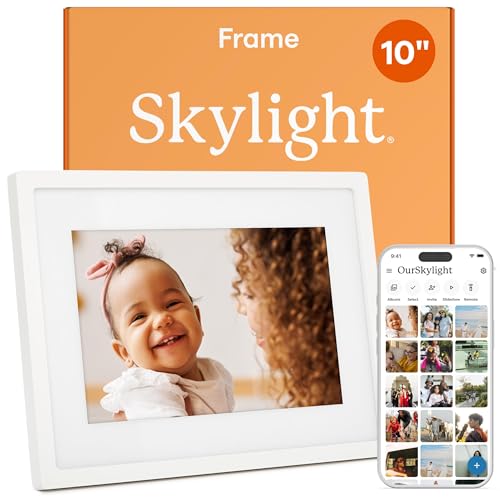
Skylight 10-inch Digital Picture Frame
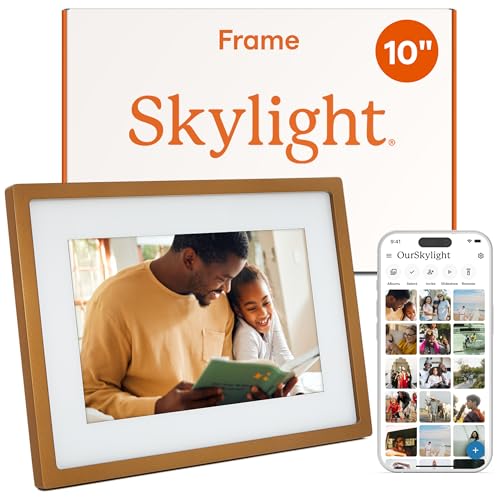
A frame rather than a planner: the listing stresses loading photos from a phone, no subscription needed and cloud-based storage. Choose it if the calendar is secondary.
Aura 10-inch Digital HD Picture Frame
A gifting-focused photo frame with no planner function listed. Consider it for a living room photo wall alongside a separate planner.
How We Chose
We shortlisted frames sold in the store that list a calendar, planner or chore function next to the picture-frame mode, then compared the listing details: screen size, resolution, stated sync services, subscription terms, mounting and photo sharing. Where a maker names an app (Frameo, Google Calendar and so on) we repeat only that.
This guide is research-based. We did not personally use these products. We relied on the listing text and each maker’s product information, and anything the maker does not state is marked as not listed.
We favored screens that make the calendar readable first, then sync breadth, then chore tools and finally photo storage. We limited the group to one pick per model line and avoided models whose listing was only a clock and photo frame.
Buying Guide
Screen size and readability
Decide where the screen goes. For a kitchen wall viewed from across the room, 15.6 inches is the sensible minimum: week view with four family members needs a lot of pixels. For a hallway table, entry shelf or desk, 10.1 inches is plenty.
Resolution matters less than size, but 1280×800 is the floor on 10.1-inch units, and a 1080p panel on 15.6 inches keeps text crisp. Touch response matters too, since a laggy screen gets ignored.
Calendar sync and accounts
List the apps your household uses. Google Calendar is the most commonly supported, followed by Outlook and iCloud. If two adults use different services, choose a unit that names both, or plan to share calendars into one master account.
Check whether sync is two-way. A screen that only shows events is helpful, but adding an appointment from the wall is what gets kids and partners to use it.
Subscription fees
Some planners hide chores, meal plans or unlimited calendars behind a monthly plan. Listings that state no subscription are a good sign, but read the checkout page and the maker’s FAQ before you commit.
If a subscription exists, factor a year of cost into the comparison with a cheaper frame.
Chores, rewards and meal plans
Chore charts help families with children aged roughly five to twelve. Look for per-child columns, reward points and recurring tasks. If you do not have kids, skip these and pay less.
Meal planning is a nice extra that works best if your family already plans dinners weekly.
Photos, memory and sharing
If photos matter, check built-in storage (32GB is common) and how relatives send pictures, usually through an app. Auto-rotate keeps portrait shots from shrinking.
Remember that a planner display set to a photo slideshow may hide the calendar; make sure there is a quick way to flip back.
Common Mistakes When Buying a Family Calendar Frame
The biggest mistake is buying a pure photo frame because the listing mentions a calendar. A clock and date overlay is not a shared schedule. Check for named sync services and chore tools.
The second is undersizing: a 10-inch screen on a wide kitchen wall looks like a postage stamp. The third is ignoring the cable: plan an outlet, or cord covers, before drilling any holes. Finally, set up one shared calendar for the family so everyone adds events in the same place.
Setup is worth ten minutes of planning. Create one family calendar in the app everyone already opens, invite every adult to it, and give each child a color. Add the recurring items first, such as school drop-off, weekly practices and bin day, so the screen looks useful from the first morning. Then add one-off events as they come up. Households that skip this step often find the screen half empty after a week and give up on it, which has nothing to do with the hardware. Keep the router close enough for a solid WiFi signal, and switch the display to sleep overnight so it does not light a bedroom wall.
Frequently Asked Questions
Can a digital picture frame sync with Google Calendar?
Some can. Listings for the LOVCUBE and Yemsd state Google Calendar sync, while many pure photo frames do not offer it at all. Always check the maker page for the calendar you use.
Do these family calendar frames need a subscription?
Not necessarily. The LOVCUBE and Yemsd listings state no subscription, but other brands may gate features, so read the checkout page and maker FAQ before buying.
What size is best for a family kitchen wall?
A 15.6-inch screen is usually best for a wall viewed from across the room, because week view with several people stays legible. A 10.1-inch model suits a hallway or desk.
Can I use one as a photo frame and a calendar at the same time?
Yes on most models, but they switch between modes rather than show both full screen. Look for a quick way to return to calendar view, and set a schedule if available.
Can relatives add photos remotely?
Frameo-based frames and several others let relatives send photos through an app. Confirm how invites work on the model you pick, and keep the frame on WiFi.
Are chore charts useful for adults or small households?
They can be, for splitting recurring tasks, but they matter most for families with school-age children. If you do not need them, a cheaper frame with a basic calendar view may be enough.
Is a digital calendar frame a good gift?
It is a practical gift for new parents, grandparents who want photos, or a busy household, and it stays useful all year. Check the return policy and the setup steps so the recipient can get online easily.
Which One Should You Buy?
Pick the Dragon Touch 15.6-inch if you want one big, readable hub for the whole family. Choose the Yemsd 15.6-inch if your household uses a mix of Google, Outlook and iCloud. Go with the LOVCUBE 10.1-inch for chores and rewards on a tighter budget, the Linkdaze when photos are your main reason to buy, the VTimes for the lowest cost, and the ApoloSign for a desk or shelf with a decorative glow.
Whatever you choose, confirm the calendar service, the subscription terms and the cable route before you commit. A family planner only works if everyone’s events actually land on the screen.
Sources
- Dragon Touch product page and support documentation
- Yemsd and LOVCUBE manufacturer product pages
- Frameo app and frame compatibility information
- Google Calendar, Outlook and iCloud calendar sharing help pages
Last updated: October 2026